Live photo slideshow: every guest photo on the big screen
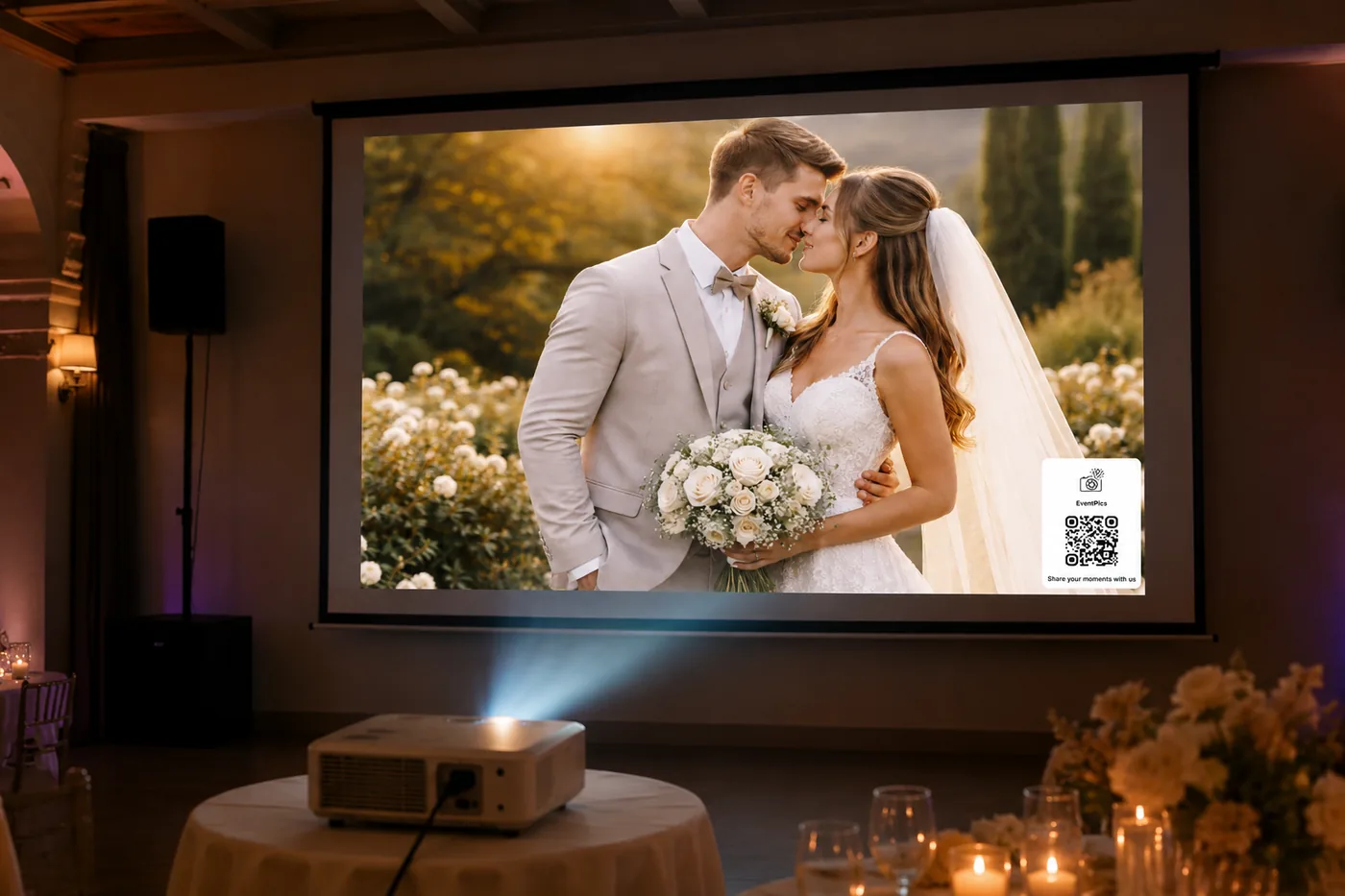
Turn any screen into a live photo wall. Guests scan the QR code right off the screen, upload, and see their photo in the show moments later. No extra hardware, it runs in the browser.
✓ New uploads appear automatically ✓ QR code right in the show ✓ Free to start
Why the EventPics live slideshow?
Live on the big screen
Start the slideshow in the browser, connect a laptop to a projector or TV, done. No installation, no extra hardware. It runs on any device with a browser: laptop, PC, Mac, tablet, smart TV or phone.
New photos appear automatically
As guests upload, their photos flow straight into the running show. The whole room sees the party from every angle while it happens. Videos can join in too.
Moderation built in
With approval mode you review every photo before it reaches the screen. Awkward or inappropriate shots stay out. Perfect for weddings, corporate events and any audience.
Your live photo wall in 4 steps
Create your event
Set up a free event. Your QR code is ready immediately.
Start the slideshow
Open it in the browser and connect your laptop to a projector or TV.
Guests scan
The QR code is right in the show. Guests upload without signing up, in the browser or the app.
Everything in one album
All photos land in one shared album, in full quality, downloadable as a ZIP afterwards. The same album can also be turned into a highlight video.
How to start the slideshow
From browser to big screen in under a minute.
Screen recording: pick the slideshow settings, start the show, guest photos run with the QR code on screen.
1. Open the web app
Open event.pics/w in the browser of the device connected to your projector or TV.
2. Get to your event
Right after opening you usually will not see any events yet. There are three ways to your event:
- Sign in: Open the menu on the left and sign in with your account. You will then see all your events.
- Enter the event link: Type your event link at the top.
- Scan the QR code: If the PC has a camera, just hold the event QR code in front of it. Scanning is faster than typing.
3. Start the slideshow
Open the event and choose "Start Slideshow" in the three dot menu at the top right. The show begins immediately.
4. Adjust the settings
Optional: in the slideshow settings you choose which albums are shown, how long each photo stays, which transition runs and whether the QR code is displayed. The defaults work for most events.
Your show, your rules
All slideshow settings at a glance.
⏱️ Time per photo
Decide how long every photo stays on screen, for example 5 seconds.
✨ Transition effect
Fade, Slide or Zoom, whatever fits your event.
🔀 Random order
Show photos shuffled randomly or in album order.
🎬 Include videos
Let your guests' videos play in the show as well.
📁 Choose albums
Show only the albums that belong on the screen.
📲 QR code overlay
Display the QR code for an access of your choice right in the show.
✍️ QR code text
Your own text below the code, for example: Scan this code and upload photos and videos.
💧 Watermark
Decide whether the EventPics logo is shown.
Live slideshow instead of USB sticks and slides
The classic way: collect photos for days and build slides. The EventPics way: the show builds itself live while everyone celebrates.
| Feature | EventPics live slideshow | Classic slideshow (USB/slides) |
|---|---|---|
| Freshness | New guest photos appear automatically | Only photos collected beforehand |
| Participation | QR code right in the show, guests upload instantly | No way for guests to join in |
| Preparation | Create the event and start the slideshow in the browser | Collect photos, sort them, build slides |
| Control | Approval mode before the big screen | No review of new content |
| After the event | One shared album in full quality, ZIP export | Files stay scattered |
Frequently asked questions about the live slideshow
What do I need for the live photo slideshow?
Just a browser. The slideshow runs on any device with a browser: laptop, PC, Mac, tablet, smart TV or phone. Connect that device to a projector or TV, or simply open the show on the screen that is already in the room. No extra hardware and no installation needed.
Do new photos appear in the slideshow automatically?
Yes. As soon as guests upload photos, they appear automatically in the running show. No restart needed. You can optionally include videos as well.
Can I prevent inappropriate photos from reaching the big screen?
Yes. With the approval mode you review every uploaded photo before it appears in the gallery and the slideshow. You stay in full control of what shows up on screen.
How do guests join in?
You can display the QR code with your own text right inside the slideshow. Guests scan it with their phone camera and upload without signing up, in the browser or the app. Every photo lands in one shared album.
How much does the live slideshow cost?
The live slideshow is included in every EventPics event. Starting is free with 2 GB of storage. Premium plans with more storage are available for bigger events.
Put your celebration on the big screen
Create an event, start the slideshow, let guests scan. That is all it takes.
Create your free event