Change Guest Permissions
Last updated: August 5, 2026
Permissions decide what people with your event link are allowed to do, per access entry and per album. You can create multiple access entries (for example one for guests and one for staff) with different rights.
1. Open "Access and permissions"
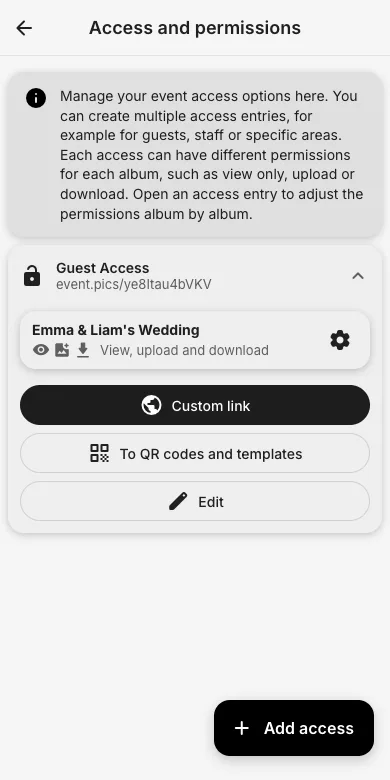
In the admin area, tap Access and permissions. You see every access entry of your event (a fresh event starts with one Guest Access) together with its link and current rights.
2. Adjust rights per album
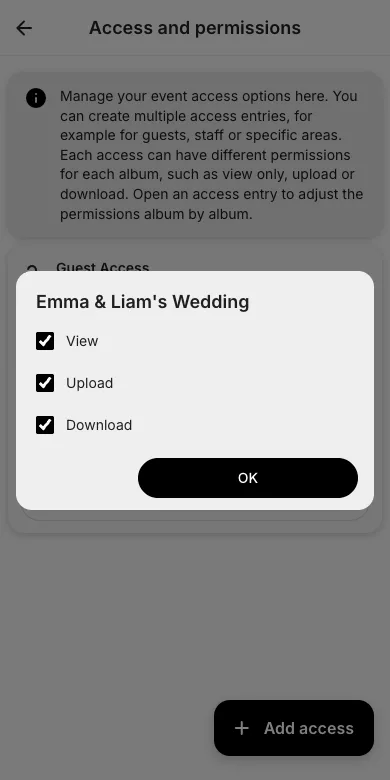
Tap the settings icon next to an album to open its permission dialog. Tick or untick View, Upload and Download and confirm with OK. The change applies immediately to everyone using that access.
3. Good to know
Guests who may upload but not view see only their own pictures, handy for surprise galleries. Additional access entries with their own QR codes can be created via Add access; each can have completely different rights.
Try it yourself
EventPics is free to start: 2 GB storage, unlimited guests, upload in the browser or the app.
Open EventPics